OBS Timer Overlay Setup Guide (Step by Step)
Step-by-step guide to adding a transparent, customizable timer overlay to OBS Studio. Works for streams, speedruns, study sessions, and events.
What Is an OBS Timer Overlay?
An OBS timer overlay is a live clock that sits right on top of your stream or recording. Unlike grabbing your phone or running a separate desktop timer, an overlay is part of your broadcast — viewers see it directly.
CleanStopwatch renders as an HTML page that OBS loads as a Browser Source. You get a transparent, customizable timer without a single plugin or download.
Quick Start — OBS Setup in 30 Seconds
Customise → Copy → Paste. Open the Configurator to pick your theme and hide controls (Zen mode). Copy the embed URL. In OBS, add a Browser Source, paste the URL, resize to fit your stream layout. Done.
For a transparent overlay, toggle background opacity to zero in the configurator before copying the URL.
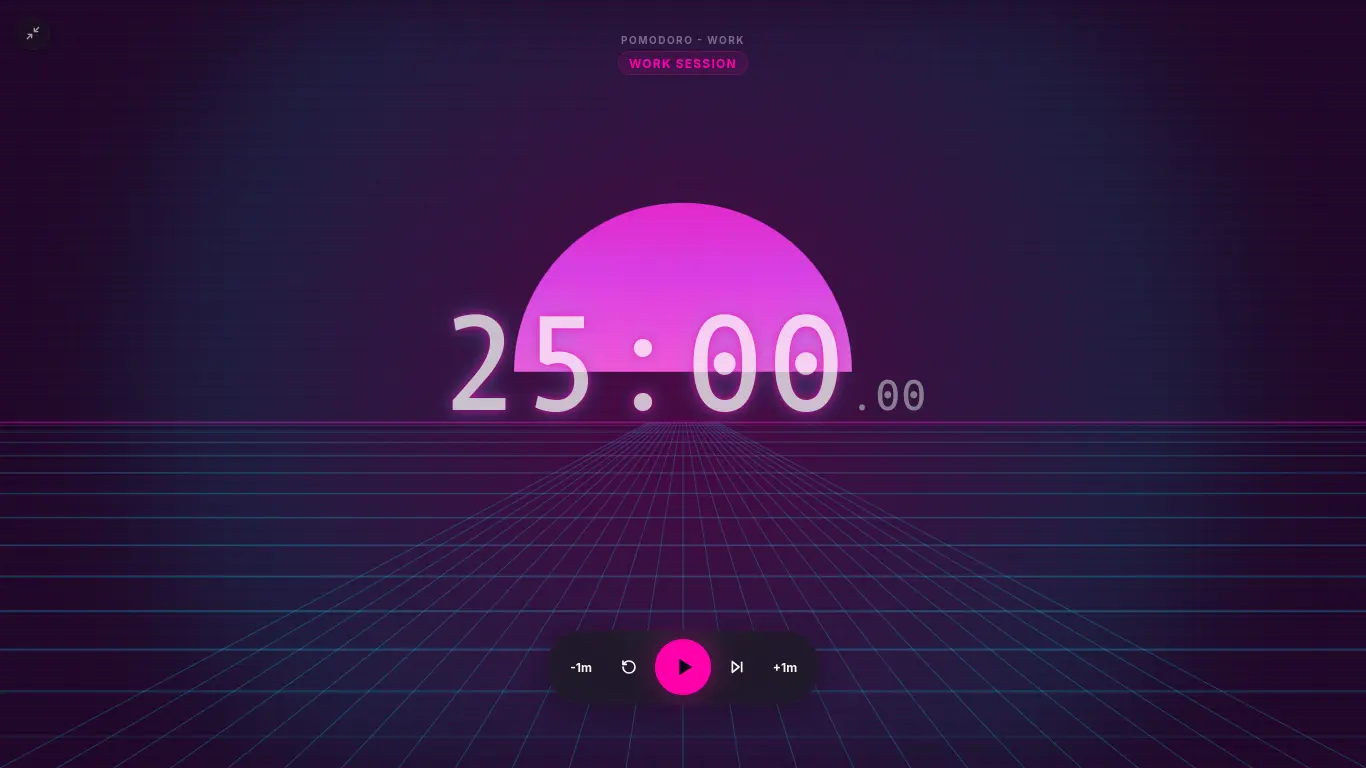
People use them for all sorts of things:
- Starting Soon screens — a countdown before you go live builds anticipation
- Speedrun timing — precise stopwatch for tracking run splits
- Study-with-me streams — Pomodoro timers show work/break cycles to viewers
- Giveaway countdowns — a visible timer adds urgency and engagement
- Segment pacing — show how much time remains in the current segment
Timer Modes for Streamers
Before you set anything up, figure out which mode fits your stream:
| Mode | What It Does | Best For |
|---|---|---|
| Stopwatch | Counts up from 00:00 | Speedruns, tracking stream duration |
| Countdown | Counts down from a set time | Starting Soon screens, giveaways, timed segments |
| Pomodoro | Cycles work/break intervals | Study streams, co-working sessions |
Switch between modes on the fly from the timer page or lock in a specific mode using the Configurator.
Step 1: Configure Your Timer
Open the CleanStopwatch Configurator to customize your overlay.
Mode and Timing
Pick your timer mode and set your default duration. For a Starting Soon countdown, try 3-5 minutes. For a study stream, go Pomodoro with 25/5 intervals.
Visual Settings
- Accent color (Pro) — pick a hex color that matches your channel branding
- Background — toggle to Transparent to remove the card. The timer digits float directly on your stream
- Border radius — set to 0 for a sharp look, or add some rounding for something softer
- Font size — choose something readable at your stream resolution
- Font — pick from the available system fonts
Preview
The preview updates in real time as you tweak things. When it looks right, grab the Live Embed URL at the bottom.
Step 2: Add to OBS Studio
- Open OBS Studio.
- Select the scene where you want the timer overlay.
- In the Sources dock at the bottom, click the + button.
- Choose Browser from the context menu.
- Enter a name like “Stream Timer” and click OK.
- Paste the CleanStopwatch Embed URL into the URL field.
- Set the Width and Height:
- Compact timer: 300 x 100
- Full countdown: 400 x 200
- Pomodoro with interval display: 400 x 250
- Check the other settings:
- Custom CSS: leave it empty unless you’re doing advanced styling
- Refresh browser when scene becomes active: check this if you want the timer to reset every time the scene loads
- Click OK.
The timer shows up on your canvas. Drag it where you want and resize as needed.
Step 3: Make It Transparent
Want just the timer digits floating on your stream? Here’s how:
- In the Configurator, find the Background toggle.
- Set it to Transparent.
- Copy the new embed URL.
- In OBS, right-click the Browser Source Properties.
- Replace the URL with the new transparent version.
- The background vanishes, leaving only the timer text.
The transparent mode uses an alpha channel, so the timer blends right into your game or camera feed. No white box, no fuss.
Step 4: Position on Your Stream
Good placement keeps the timer visible without covering up anything important.
| Stream Layout | Suggested Position | Size |
|---|---|---|
| 1920x1080 (standard) | Top-right or bottom-right | 400x200 |
| 1664x936 (60% canvas) | Inset corner | 320x160 |
| Vertical / Mobile vertical | Top center | 200x100 |
| Fullscreen game | Any corner, small | 250x80 |
Advanced: Custom CSS in OBS
Need something the Configurator doesn’t offer? Use OBS’s Custom CSS field in the Browser Source properties:
/* Add text shadow for readability over bright game footage */
body {
	text-shadow: 2px 2px 6px rgba(0, 0, 0, 0.9);
}
/* Change font weight */
.timer-display {
font-weight: 900;
}/* Reposition content within the browser source */
body {
display: flex;
align-items: center;
justify-content: center;
}Changes show up right after you hit save — no need to refresh OBS.
Troubleshooting
Timer doesn’t appear. Double-check the URL starts with https://cleanstopwatch.com/embed/?. Also make sure the Browser Source dimensions are big enough to show the full widget.
Timer has a white background. Make sure you toggled Background to Transparent in the Configurator. If you already did, copy the URL again — the transparent setting lives in the URL itself.
Timer is too small or too large. Adjust the Browser Source width and height in OBS. You can also change the font size in the Configurator.
Timer resets unexpectedly. Check if “Refresh browser when scene becomes active” is turned on. That setting is useful for countdowns that should restart each scene load, but turn it off if you want the timer to persist across scene switches.
FPS drops. CleanStopwatch uses very little CPU/GPU. If you’re seeing performance issues, try reducing the Browser Source resolution or closing other browser sources.
Timer doesn’t sync with stream start. If you want the timer to start exactly when you go live, pause it before the stream starts, then unpause on cue. The timer stays put while paused, no time lost.
Why CleanStopwatch for OBS
| Feature | CleanStopwatch | Other Solutions |
|---|---|---|
| Setup time | ~60 seconds | Often requires registration or plugin install |
| Transparent overlay | One toggle in Configurator | Complex CSS or no support |
| Modes | Stopwatch, Countdown, Pomodoro | Usually only countdown |
| Custom colors | Full hex picker (Pro) | Limited presets |
| Plugin required | No (standard Browser Source) | Often yes |
| CPU/GPU usage | Minimal | Varies widely |
| Works offline | Internet required for initial load | Same |
Twitch & YouTube Specific Setup
The basic OBS setup is the same for any platform. But each platform has slightly different overlay best practices.
Twitch
Twitch streams are typically 1920x1080. Place your timer in a spot that doesn’t overlap with your webcam, alerts, or chat. The top-right corner is the most common position since that’s where viewers naturally look for overlay info.
For Starting Soon screens on Twitch:
- Use a 3-5 minute countdown
- Set the font size large enough to read on mobile (a significant portion of Twitch viewers watch on phones)
- Keep it visible but minimal — viewers are watching your starting soon screen, not a clock
For BRB screens:
- Switch to a stopwatch counting up so viewers know how long you’ve been away
- Position it smaller since the screen should focus on the BRB media
YouTube
YouTube streams can be 1920x1080 or 2560x1440 for higher bitrate streams. The larger canvas means you have more room for overlays.
For YouTube Premieres or scheduled streams:
- Use a countdown that matches your premiere duration
- Position it centrally since YouTube’s UI already has elements in the corners
- Consider using the “Solid” background mode instead of transparent to make the timer stand out against busy video
Vertical Streams (TikTok, YouTube Shorts, Twitch Mobile)
Vertical streams need smaller overlays. Use these settings:
- Browser Source dimensions: 200x100
- Font size: smaller than standard (adjust in Configurator)
- Position: top center or top-right
- Keep the timer compact — vertical streams have less canvas space
Using Timer for Different Stream Moments
| Stream Moment | Timer Mode | Duration | Position |
|---|---|---|---|
| Starting Soon | Countdown | 3-5 min | Center or top-right |
| Stream Active | Stopwatch | — | Top-right, small |
| Speedrun | Stopwatch with laps | — | Top-center, large |
| Study Session | Pomodoro | 25/5 or 50/10 | Any corner |
| Giveaway | Countdown | 2-10 min | Center, prominent |
| BRB / Intermission | Stopwatch | — | Small, any corner |
| Countdown to Event | Countdown | Match event | Top-center |
Advanced: Timer + Stream Alerts
If you use StreamElements, Streamlabs, or similar alert tools, position your timer so it doesn’t conflict with alert popups. Common conflict zones:
- Bottom-center — where most follower/sub alerts appear. Keep the timer elsewhere.
- Top-right — usually safe for timers since alerts rarely appear there.
Rule of thumb: place the timer in a static corner that nothing else overlaps. If an alert covers the timer temporarily, that’s fine — it’ll be visible again once the alert clears.
Multi-Scene Timer Setup
Many streamers want one timer that persists across scenes. Here’s how to do it:
- Create a dedicated Timer Scene (or use an existing scene).
- Add the Browser Source for CleanStopwatch there.
- Don’t check “Refresh browser when scene becomes active” — you want the timer state to persist.
- Add the Browser Source as a source to your other scenes (right-click the source → Copy, then paste it into other scenes, choosing “Add existing”).
The timer keeps running even as you switch between gameplay, BRB, and intermission scenes. Start it once when you go live and it tracks everything.
Using Timer on Dual Monitor Stream Setup
If you stream with a dual monitor setup, you have a few options:
Option A: Browser Source on Stream PC — Add CleanStopwatch as a Browser Source in OBS on your streaming PC. This is the most reliable setup since the timer renders alongside your stream.
Option B: Network Capture — Run CleanStopwatch on a second machine or tablet and capture it as a window capture in OBS. Less reliable than Browser Source but useful if your streaming PC is low on resources.
Option C: Phone as Timer Display — Open CleanStopwatch on a phone, mount it near your monitor, and point your webcam at it (for physical streams). The responsive mobile layout works on any phone browser.
FAQ
Will the timer affect my stream performance? CleanStopwatch uses minimal CPU/GPU. A single Browser Source with CleanStopwatch uses less resources than most alert overlays or chat widgets.
Can I use keyboard shortcuts during a stream? Yes. Focus the Browser Source (click it once in OBS), then use Space to start/pause and R to reset. The shortcuts won’t interfere with your game controls since the keybinds only apply when the Browser Source is focused.
Does the timer work with Streamlabs Desktop? Yes. Streamlabs Desktop uses OBS under the hood. Add a Browser Source the same way — the settings are identical.
Can multiple timers run at once? Yes. Add multiple Browser Sources, each with different CleanStopwatch embed URLs. You could have a main countdown and a separate stream duration stopwatch running simultaneously.
How do I make the timer look like part of my stream design? Match the Configurator accent color to your stream brand colors. Adjust the font size and border radius to match your overall overlay style. Transparent background makes it blend into any scene.
Does the timer stay visible when I change scenes? Only if you use the same Browser Source across scenes (add as existing source). Each scene with its own Browser Source starts fresh.
Quick Start Summary
- Open Configurator — set mode, colors, and transparent background
- Copy the Embed URL
- In OBS: Add Browser Source — paste URL — set dimensions
- Position and resize on your canvas
Start building your overlay: cleanstopwatch.com/configurator
Related Guides
- Embed a Timer in Obsidian (Free & Customizable) — Add timers to your note-taking workflow.
- Free Online Stopwatch for Gaming & Speedruns — How to use CleanStopwatch for speedrun timing.