EducationNo. —— · Field note7 min
Google Slides Timer: Embed Live Countdowns Without YouTube Ads
How to add clean, ad-free countdown timers to Google Slides presentations and smartboards. Bypasses school district YouTube blocks and intrusive ads.
Updated 2026-09-28Free guideOpen the timer →
The Persistent Frustration with Presentation Timers
Whether you are teaching a classroom of thirty energetic middle-schoolers, leading a corporate agile workshop, or delivering a keynote address, timing is everything. You need your audience to complete a timed exercise, brainstorm ideas on sticky notes, or wrap up a group discussion before the bell or transition.
For years, the standard advice on blogs and forums has been simple: “Just insert a YouTube countdown video into your Google Slide.”
In practice, this workaround creates endless classroom and presentation headaches:
- Intrusive Commercials: Right before a serious 10-minute workshop sprint, an unskippable 30-second detergent or car advertisement plays over the classroom speakers.
- School Firewall & District Filter Blocks: Public K-12 school districts and enterprise corporate networks routinely block
youtube.comon student devices and classroom projectors. - Rigid Durations: If your class finishes an exercise early, or if a team needs two extra minutes, you cannot pause or adjust a YouTube video on the fly. You are locked into whatever video duration you embedded.
- Accidental Click Disasters: Clicking anywhere near the video can pause it, unmute related videos, or open a new browser tab with algorithmic recommendations.
Third-party Google Workspace add-ons seem like an alternative, but they introduce substantial security hurdles: most require administrative approval and demand permission to “View, edit, create, and delete all your Google Slides presentations.” School IT coordinators rarely permit those blanket scopes.
CleanStopwatch provides a clean, dependable alternative that runs completely free of external video platforms or invasive account permissions.
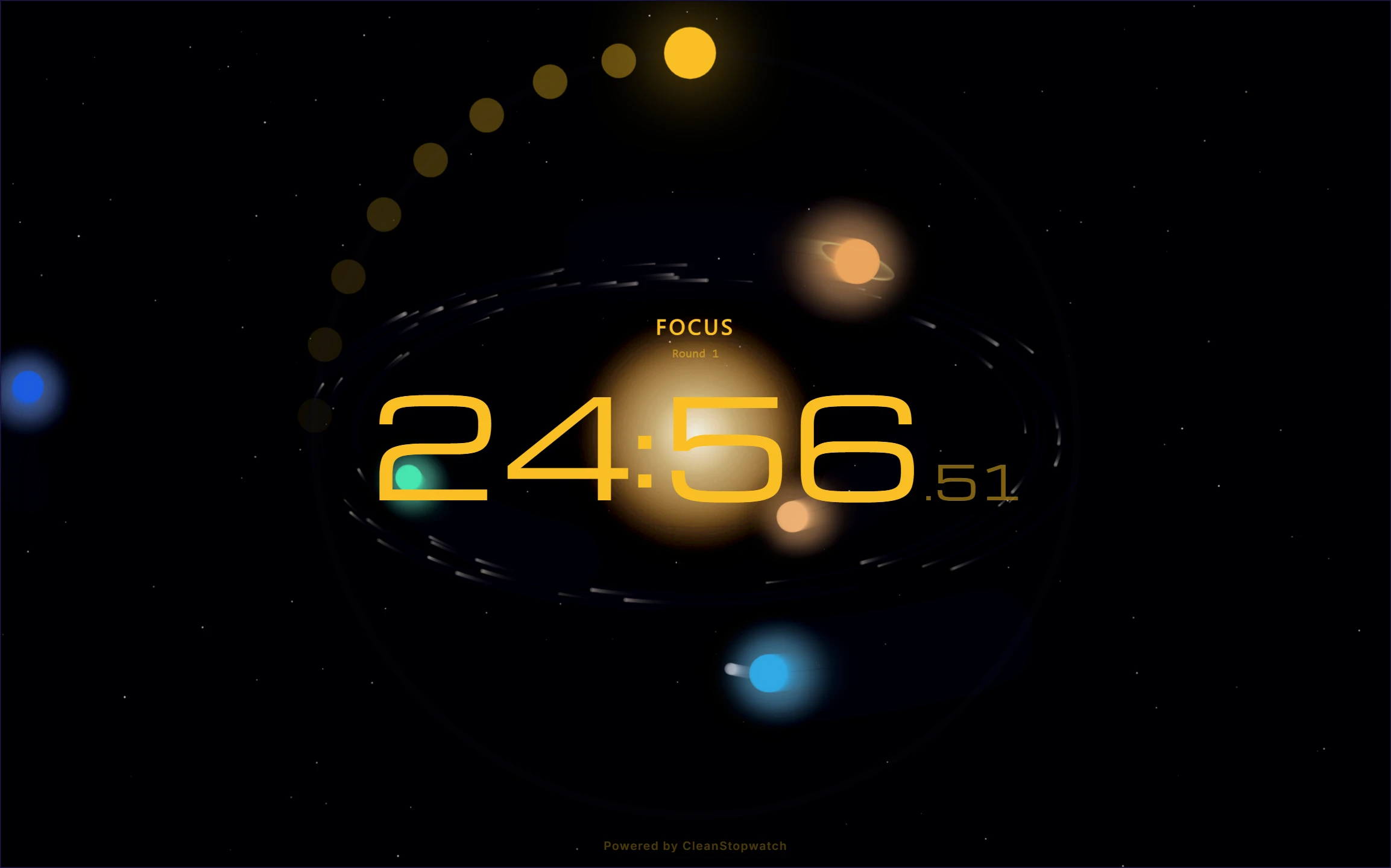
Method 1: The Snapped Dual-Window Setup (Recommended for Smartboards)
The most robust, flexible way to run a live countdown alongside Google Slides is the snapped dual-window layout. This method requires zero extensions and works seamlessly on Windows, macOS, and ChromeOS (Chromebooks):
Step 1: Open Your Presentation in Windowed Mode
Rather than locking Google Slides into full-screen presentation mode, launch your slide deck in a standard browser window:
- In Google Slides, click the arrow next to Slideshow and select Presenter View, or simply resize the browser window to fill 70% of your projection screen.
Step 2: Snap CleanStopwatch to the Remaining Screen Space
- Open a new window and navigate to CleanStopwatch.
- Set your desired countdown duration (e.g., 5 or 10 minutes).
- Snap the timer window to the right-hand 30% of your screen (using
Windows Key + Right Arrowon Windows, or split-screen tiling on macOS). - Press F to trigger fullscreen within that pane, or leave it in windowed view.
This keeps your lesson instructions or meeting agenda clearly visible on the left, while large, high-contrast digital digits tick down on the right. If students need an extra two minutes, you can click +1m without ever touching your presentation.
Method 2: Chromeless Presentation Embeds via the Configurator
For web-based presentation systems, interactive LMS platforms (Canvas, Schoology, Google Sites), or Notion dashboards, CleanStopwatch provides a lightweight, chromeless iframe embed.
Using the CleanStopwatch Configurator, you can generate custom URLs that strip away all buttons, headers, and navigation bars:
https://cleanstopwatch.com/embed/?mode=countdown&durationSec=300&showControls=false&autoStart=true&theme=voidKey Parameters for Presentation Embeds:
mode=countdown: Ensures the timer counts down rather than up.durationSec=300: Sets the exact duration in seconds (e.g.,300for 5 minutes,900for 15 minutes).showControls=false: Completely hides the Play, Pause, and Reset buttons so audience members cannot tamper with the timer.autoStart=true: The timer immediately begins ticking the moment the slide or page loads.theme=void: High-contrast pure OLED black background that blends seamlessly into dark slide templates.
If you are embedding via Google Sites or an educational LMS portal, insert an Embed Block and paste your generated CleanStopwatch link.
Method 3: Dual-Monitor Presenter View with Keyboard Hotkeys
If you are presenting from a laptop connected to a ceiling projector or smartboard via HDMI or AirPlay:
- Extend your desktop display (
Windows + P-> Extend on Windows, or System Settings -> Displays on Mac). - Move your Google Slides presentation to the main projector display.
- Open CleanStopwatch on your primary laptop screen or in a dedicated tab.
- Use global keyboard shortcuts to control pacing without glancing away from your audience:
- Space: Start or pause the countdown.
- R: Instantly reset to your default duration.
- F: Toggle full-screen presentation.
Because CleanStopwatch utilizes hardware-accurate Web Audio timing rather than throttled JavaScript intervals, the clock will never lose seconds even if you browse presenter notes or switch between documents during the activity.
Presentation Pacing & Activity Durations
Here are recommended timeframes for common interactive workshop and classroom formats:
| Format / Activity | Recommended Duration | Timer Mode | Suggested Alarm Sound |
|---|---|---|---|
| Think-Pair-Share | 2–3 minutes | Countdown | Gentle Bloom (soft acoustic chime) |
| Silent Reading Block | 10–15 minutes | Countdown with Pink Noise | Void Bell (deep melodic resonance) |
| Group Problem Set | 15–20 minutes | Countdown | Melody (clear chime alert) |
| Lightning Pitch / Q&A | 3–5 minutes | Countdown | Chime (distinct closing alert) |
| Student Speech / Debate | Up to 10 minutes | Stopwatch (Tracking laps) | None (silent manual split tracking) |
Classroom Acoustics: Alerts That Cut Through Chatter
One of the biggest issues in a busy classroom is that soft computer speakers get drowned out by thirty students talking during group work.
CleanStopwatch allows you to select from 27+ audio alert melodies. For active classroom environments:
- Choose Melody, Digital, or Coin Spark for bright, punchy frequencies that cut through ambient conversation.
- Use Void Bell or Gentle for quiet study halls, computer labs, and library testing blocks where jarring alerts would disturb adjacent classes.
COPPA, FERPA, & Student Privacy Compliance
School districts operate under strict federal student privacy standards, including the Children’s Online Privacy Protection Act (COPPA) and Family Educational Rights and Privacy Act (FERPA).
Many popular web timers now require student logins, Google Single Sign-On (SSO), or track classroom IP addresses to serve targeted programmatic banner ads.
CleanStopwatch is engineered with a strict privacy-first architecture:
- Zero Mandatory Logins: Teachers and students never create accounts, provide email addresses, or link Google Workspace profiles.
- 100% Client-Side Execution: Timer state, lap history, and visual preferences run entirely inside the local browser session via Web APIs and
localStorage. - Zero Student Tracking: No advertising pixels, tracking cookies, or biometric profiling.
You can project CleanStopwatch on any classroom smartboard or school-issued Chromebook with full confidence that student data remains completely private.
Try it live
Run this guide on a real timer.
Open the app side-by-side and follow along — no signup.